
The 30-day chase stops on its own when a customer accepts or declines. But sometimes you know the answer before the system does — the customer told your tech at the door, or called the office, or you simply decided to let this one go.
When that happens, don't let the follow-up keep running. Mark the estimate's decision, and the sequence halts.
How to stop it
The decision is marked on the estimate itself. The simplest path: the customer declines right from their estimate link — one tap, and everything stops.
If the customer told you by phone or in person, your office can mark it for them:
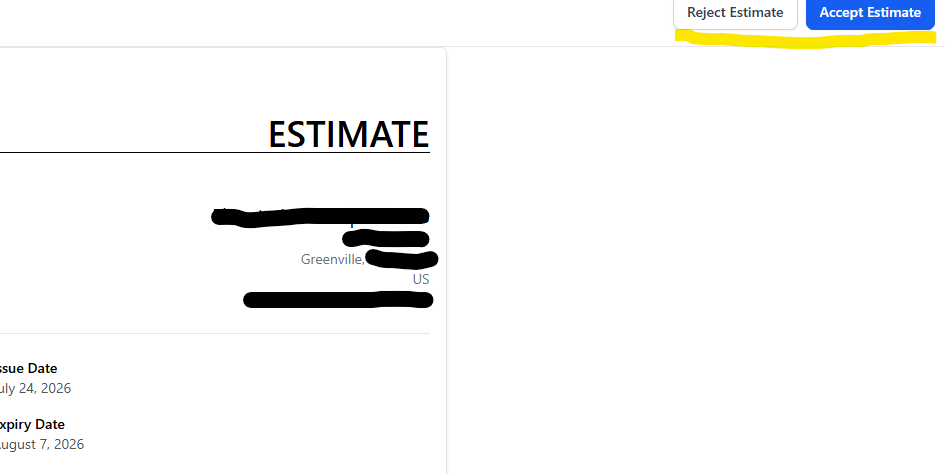
- Open the estimate link — either from the customer's conversation (it's in the thread where it was sent), or via Payments → Estimates → the three dots beside that estimate → Copy Link, then paste it into a new tab.
- Click Reject Estimate in the top right.
- Enter the reason for the rejection and confirm.
That's it. All remaining texts, emails, and call reminders on that estimate stop.
When to do this
- The customer said no — by phone, in person, anywhere outside the estimate itself. Mark it declined so they don't keep hearing from you.
- The customer said yes verbally — mark it accepted so follow-up stops and scheduling starts. (If they accept through the estimate itself, this happens automatically.)
- You're passing on the job — out of your area, not your kind of work, red-flag customer. Mark it lost and the system lets go.
Why it matters
Follow-up is only charming while the answer is still open. A customer who already told your tech "we went with someone else" should never get a day-14 text. Thirty seconds of marking the decision keeps your shop's messages sharp and your name good.
Related
- A customer who wants no texts at all is a different situation — that's an opt-out.
- Not sure whether a sequence is still running for someone? Ask support — we can check in a minute.