Customers can put themselves on your schedule — from your website, from a text your team sends, or from links in your automatic messages. No phone tag.
Where booking links live
Your account is set up with booking links for the kinds of visits you run — for example service calls, estimates, and maintenance visits. They show up in the places that matter:
- Your website — the booking form your visitors use
- Automatic messages — for example, tune-up reminders include a link so the customer can book themselves
- Your team's replies — office staff can drop a booking link into any conversation: "Here you go, grab whatever time works: [link]"
Need to copy a booking link yourself? Open Calendars → Calendar Settings, pick the calendar you need, click the share arrow, and choose Copy Permanent Link. Paste it anywhere — a text, an email, your website. (Don't see Calendar Settings on your account? Just ask support — we'll send you your links.)
What the customer sees
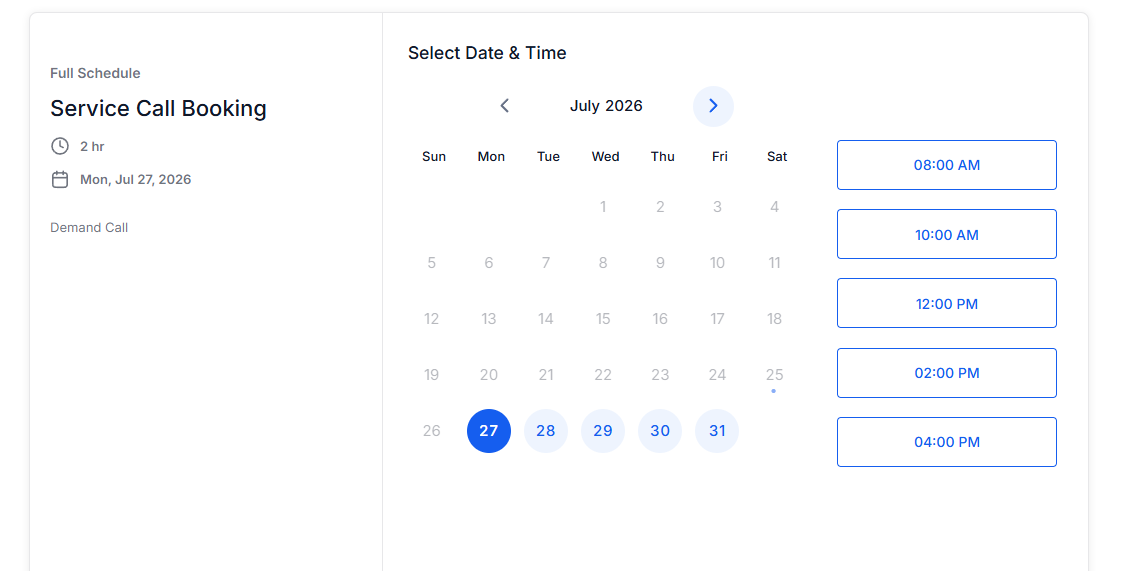
- They open the link and see available times — only times that actually work, based on your team's real availability.
- They pick a slot and enter their name, phone, and the issue.
- They get an instant confirmation text and email.
What happens on your side
The moment a booking lands:
- The appointment appears on the right tech's calendar.
- A job card is created on the dispatch board — automatically, no data entry.
- The customer's confirmation and reminder messages are scheduled. See What your customer receives around every appointment.
Good to know
- Double-booking isn't a thing. Customers only see open slots.
- New customers create themselves. A first-time booker becomes a contact automatically, with their info attached.
- Want different appointment types, durations, or hours? Those are tuned to your shop during onboarding — and adjusted any time by Escape support.